I am coder by profession, was in corporate world for 8 years , now after sabbatical I am doing freelancing.
This blog contains articles on the learning which I have during my coding career.
Artificial Intelligence (AI), Machine Learning (ML) and Deep Learning (DL) are three terms people use as synonyms although they don’t refer to the same things. I will try to explain and unfold the difference between these terms
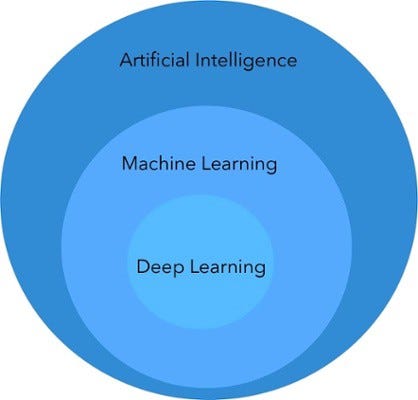
So, what’s the difference between these three concepts?
From: Towards Data Science.
The image above shows that the three concepts are strictly related. However, DL is a subset of ML, which is a subset of AI.
In this post, we’ve defined these three concepts and outlined their applications.
What is Artificial Intelligence (AI)?
Artificial Intelligence (AI) refers to the simulation of human intelligence processes by machines, including learning, reasoning and self-correction. AI can be of two types: weak AI and strong AI. Weak Artificial Intelligence refers to an AI system developed for a specific task. Strong Artificial Intelligence is an AI system with generalized human cognitive skills.
In simpler terms, AI is the broader concept of machines being able to carry
out tasks in a way that we would consider "smart". Machine acting like human is AI.
Application
AI is usually adopted to solve customer service issues, inform people about the latest news along with giving them live traffic updates and weather forecast.
Real World AI Applications
Alexa and Google Voice Assistant
Tesla self-driving cars
Airplane autopilot mode
Email spam folder
Facebook picture face-recognition
Instagram Explore page curation
What is Machine Learning (ML)?
Machine learning (ML) is an application of Artificial Intelligence (AI) generating systems that can learn and improve without being programmed. Contrary to AI, ML concentrates on developing computer programs that access data and use it to learn for themselves.
In simpler terms, ML is an application of AI that provides system the ability to automatically learn and improve from experience without being explicitly programmed.
Application
Machine Learning is often used to power recommendation engines that provide suggestions based on past customers’ behaviors.
Lets Dive into an example
I have an alexa at home, so while doing my morning exercise I ask alexa to 'play music'.
Alexa plays the music at volume 8. But that's too loud, so I ask alexa to change the volume to 5. This happens multiple mornings, so one day when i ask alexa to change the volume, she asks 'Should I change the default volume to level 5'
Here Alexa learned from my behaviour (ML) and applied human intelligence (AI).
What is Deep Learning (DL)?
Deep Learning (DL) is a subset of Machine Learning and Artificial Intelligence. The term refers to a particular approach used for creating and training neural networks that are considered highly promising decision-making nodes.
Application
Deep Learning is used to develop highly automated systems such as self-driving cars. Through their sensors and onboard analytics, these cars can reorganise obstacle and facilitate situational awareness.
In conclusion, Artificial Intelligence, Machine Learning and Deep Learning are three different terms that need to be fully understood and used separately.
Sometimes a bug in Excel results in the application displaying the text of a formula rather than the result of the formula in the spreadsheet. I have not been able to find a pattern of when it does it, but I have some spreadsheets that do this consistently.
The Fix
To get Excel to properly display the result:
Select the cell.
Format the cell as "General". (Right-click the cell, select Format Cells, and choose "General.")
Delete the "=" at the beginning of your formula, and hit Enter.
Insert the "=" back in the formula at the beginning.
That is it. You should now see the result of the calculation in the cell rather than the text of the formula.
If the cell width is too short, Excel either simply cuts the visible text off, or it flows into the next cell (depending if the next cell has some content in it or not).
Some cell formats (e.g. decimals) can be shortened if a cell is not wide enough to display the entire number. However, some formats (e.g. dates and times) require the cell to be wide enough to display the entire value. If the cell is not wide enough, it will display a row of hashes.
Solution
This problem is easily solved, by altering the cell width. The easiest way to do this is to drag the bar separating the column headers (as shown in the image on the right), until the cell is wider.
Alternatively, if you double-click on this bar, the cell should automatically re-size to fit the contents.
Possible Reason No. 2
If Excel continues to display a string of # symbols, no matter how wide you make your column, it is likely that Excel is attempting to display the contents of the cell as a date or time, but the cell contains an invalid date or time value.
As dates and times are stored as positive numeric values within Excel, some values (for example negative values) are invalid as dates or times. Excel shows this by filling the cell with # symbols.
Solution
If the cell is intended to contain a date or time, check your formulas. Excel dates and times must be positive numeric values. Note that Excel can not handle negative dates or times.
If the cell is not intended to contain a date or time, change the formatting of the cell.
The quickest way to change a cell's formatting is to select the cell to be formatted and then select the required cell formatting from the drop-down menu in the 'Number' group on the Home tab of the Excel ribbon (see below):
However! If you use this cell as a data-input to, for example, a field in a merged Word document, only the first 256 characters will be grabbed!!!
While I was doing my project, I got a request from the client, to include charts in the mails along with other content which is being shared earlier.
As we all are so much into google, so I did some research on how we can do this.
Following are some nice examples that really helped me.
For simple mail, we all do this
Option Explicit
Private Sub CommandButton1_Click()
On Error GoTo ErrHandler
' SET Outlook APPLICATION OBJECT.
Dim objOutlook As Object
Set objOutlook = CreateObject("Outlook.Application")
' CREATE EMAIL OBJECT.
Dim objEmail As Object
Set objEmail = objOutlook.CreateItem(olMailItem)
With objEmail
.to = "abc@xyz.com"
.Subject = "This is a test message"
.Body = "Hi there"
.Display' DISPLAY MESSAGE.
End With
' CLEAR.
Set objEmail = Nothing: Set objOutlook = Nothing
ErrHandler:
End Sub
Now for including a chart following are the examples:
Example 1
This example sends a chart with the name "Chart 1" from "Sheet1" of the ActiveWorkbook.
It will save My_Sales1.gif in the temp folder, send the mail and delete My_Sales1.gif after that.
Sub SaveSend_Embedded_Chart()

    Dim OutApp As Object
    Dim OutMail As Object
    Dim Fname As String

    Set OutApp = CreateObject("Outlook.Application")
    Set OutMail = OutApp.CreateItem(0)

    'File path/name of the gif file
    Fname = Environ$("temp") & "\My_Sales1.gif"

    'Save Chart named "Chart 1" as gif file
    'If you hold down the CTRL key when you select the chart
    'in 2000-2013 you see the name in the Name box(formula bar)
    ActiveWorkbook.Worksheets("Sheet1").ChartObjects("Chart 1").Chart.Export _
            Filename:=Fname, FilterName:="GIF"

    On Error Resume Next
    With OutMail
        .To = "abc@xyz.com"
        .CC = ""
        .BCC = ""
        .Subject = "This is the Subject line"
        .Body = "Hi there"
        .Attachments.Add Fname
        .Send   'or use .Display
    End With
    On Error GoTo 0

    'Delete the gif file
    Kill Fname

    Set OutMail = Nothing
    Set OutApp = Nothing
End Sub
Example 2
This example sends a chart sheet with the name "Chart1" from the ActiveWorkbook.
It will save My_Sales2.gif the temp folder, send the mail and delete My_Sales2.gif after that.
Sub SaveSend_Chart_Sheet()

    Dim OutApp As Object
    Dim OutMail As Object
    Dim Fname As String

    Set OutApp = CreateObject("Outlook.Application")
    Set OutMail = OutApp.CreateItem(0)

    'File path/name of the gif file
    Fname = Environ$("temp") & "\My_Sales2.gif"

    'Save Chart sheet named "Chart1" as gif file
    ActiveWorkbook.Sheets("Chart1").Export _
            Filename:=Fname, FilterName:="GIF"

    On Error Resume Next
    With OutMail
        .To = "abc@xyz.com"
        .CC = ""
        .BCC = ""
        .Subject = "This is the Subject line"
        .Body = "Hi there"
        .Attachments.Add Fname
        .Send   'or use .Display
    End With
    On Error GoTo 0

    'Delete the gif file
    Kill Fname

    Set OutMail = Nothing
    Set OutApp = Nothing
End Sub
String Interpolation is nothing but a way to concatenate two or more strings together. As we aware of, in previous version of .NET we did string concatenation using the + (plus) operator. Sometimes for the same work we have also used the String.Format method. Now we are pleased to hear that it became the old way to do string concatenation.
C# 6.0 is the newest version of C#, Microsoft added a very nice feature to accelerate our program code. Now we can put expressions directly in the string literal to show the values in an actual manner. In C# 6.0 we can easily specify various formats in our values. We can do the following.
How can we
insert multiple values in table using only one insert?
When there are multiple records are to be inserted in the table following is
the common way using T-SQL.
INSERT INTO MyTable(FirstCol, SecondCol)
VALUES ('First',1);
INSERT INTO MyTable(FirstCol, SecondCol)
VALUES ('Second',2);
INSERT INTO MyTable(FirstCol, SecondCol)
VALUES ('Third',3);
INSERT INTO MyTable(FirstCol, SecondCol)
VALUES ('Fourth',4);
INSERT INTO MyTable(FirstCol, SecondCol)
VALUES ('Fifth',5);
GO
The
clause INSERT INTO is repeated multiple times. Many times DBA copy and paste it
to save time. There is another alternative to this, using UNION ALL and INSERT INTO … SELECT… clauses.
Regarding performance there is
not much difference. Also, insert script is used one time, so performance does not make much difference.
INSERT
INTO MyTable
(FirstCol, SecondCol) SELECT
'First'
,1 UNION
ALL SELECT
'Second'
,2 UNION
ALL SELECT
'Third'
,3 UNION
ALL SELECT
'Fourth'
,4 UNION
ALL SELECT
'Fifth'
,5 GO
The effective result is same.
If one is using SQL Server 2008, then a new
feature to insert
multiple rows in SQL with using only one SELECT statement can be used.
SQL Server 2008 Method
of Row Construction: INSERT INTO MyTable (FirstCol, SecondCol) VALUES ('First',1), ('Second',2), ('Third',3), ('Fourth',4), ('Fifth',5)
These are ten commands that you really need to know in order
to get started with UNIX. They are probably similar to commands you already
know for another operating system.
Command
Example
Description
1. ls
ls
ls -alF
Lists files in current directory
List in long format
2. cd
cd tempdir
cd ..
cd ~dhyatt/web-docs
Change directory to tempdir
Move back one directory
Move into dhyatt's web-docs directory
3. mkdir
mkdir graphics
Make a directory called graphics
4. rmdir
rmdir emptydir
Remove directory (must be empty)
5. cp
cp file1 web-docs
cp file1 file1.bak
Copy file into directory
Make backup of file1
6. rm
rm file1.bak
rm *.tmp
Remove or delete file
Remove all file
7. mv
mv old.html new.html
Move or rename files
8. more
more index.html
Look at file, one page at a time
9. lpr
lpr index.html
Send file to printer
10. man
man ls
Online manual (help) about command
Ten
VALUABLE UNIX Commands
Once you have mastered the basic UNIX commands, these will
be quite valuable in managing your own account.
Command
Example
Description
1. grep
<str><files>
grep "bad word" *
Find which files contain a certain
word
2. chmod
<opt> <file>
chmod 644 *.html
chmod 755 file.exe
Change file permissions read only
Change file permissions to executable
3. passwd
passwd
Change passwd
4. ps <opt>
ps aux
ps aux | grep dhyatt
List all running processes by #ID
List process #ID's running by dhyatt
5. kill
<opt> <ID>
kill -9 8453
Kill process with ID #8453
6. gcc (g++)
<source>
gcc file.c -o file
g++ fil2.cpp -o fil2
Compile a program written in C
Compile a program written in C++
7. gzip
<file>
gzip bigfile
gunzip bigfile.gz
Compress file
Uncompress file
8. mail
(pine)
mail me@tjhsst.edu <
file1
pine
Send file1 by email to someone
Read mail using pine
Open a connection to vortex
Open a secure connection to jazz as user dhyatt
10. ftp <host>
ncftp <host/directory>
ftp station1.tjhsst.edu
ncftp metalab.unc.edu
Upload or Download files to
station1
Connect to archives at UNC
Ten
FUN UNIX Commands
These are ten commands that you might find interesting or
amusing. They are actually quite helpful at times, and should not be considered
idle entertainment.
Command
Example
Description
1. who
who
Lists who is logged on your
machine
2. finger
finger
Lists who is on computers in the
lab
3. ytalk
<user@place>
ytalk dhyatt@threat
Talk online with dhyatt who is on
threat
4. history
history
Lists commands you've done
recently
5. fortune
fortune
Print random humerous message
6. date
date
Print out current date
7. cal <mo>
<yr>
cal 9 2000
Print calendar for September 2000
8. xeyes
xeyes &
Keep track of cursor (in
"background")
9. xcalc
xcalc &
Calculator ("background"
process)
10. mpage <opt>
<file>
mpage -8 file1 |
lpr
Print 8 pages on a single sheet
and send to printer (the font will be small!)
Ten
HELPFUL UNIX Commands
These ten commands are very helpful, especially with
graphics and word processing type applications.
Command
Example
Description
1. netscape
netscape &
Run Netscape browser
2. xv
xv &
Run graphics file converter
3. xfig / xpaint
xfig & (xpaint &)
Run drawing program
4. gimp
gimp &
Run photoshop type program
5. ispell <fname>
ispell file1
Spell check file1
6. latex
<fname>
latex file.tex
Run LaTeX, a scientific document
tool
7. xemacs / pico
xemacs (or pico)
Different editors
8. soffice
soffice &
Run StarOffice, a full word
processor
9. m-tools (mdir,
mcopy,
mdel, mformat, etc. )
mdir a:
mcopy file1 a:
DOS commands from UNIX (dir A:)
Copy file1 to A:
10. gnuplot
gnuplot
Plot data graphically
Ten
USEFUL UNIX Commands:
These ten commands are useful for monitoring system access,
or simplifying your own environment.
Command
Example
Description
1. df
df
See how much free disk space
2. du
du -b subdir
Estimate disk usage of directory
in Bytes
3. alias
alias lls="ls -alF"
Create new command "lls"
for long format of ls
4. xhost
xhost + threat.tjhsst.edu
xhost -
Permit window to display from
x-window program from threat
Allow no x-window access from other systems
5. fold
fold -s file1 |
lpr
Fold or break long lines at 60
characters and send to printer
6. tar
tar -cf subdir.tar subdir
tar -xvf subdir.tar
Create an archive called
subdir.tar of a directory
Extract files from an archive file
7. ghostview (gv)
gv filename.ps
View a Postscript file
8. ping
(traceroute)
ping threat.tjhsst.edu
traceroute www.yahoo.com
See if machine is alive
Print data path to a machine