Tuesday, May 28, 2019

Trim characters from a string in oracle


  • For trimming characters from last 


select  substr('Trim_India_1', 0, length('Trim_India_1')-2) from dual;

Result: Trim_India


  • For trimming characters from starting 


select  substr('Trim_India_1', 3) from dual;

Result: im_India_1

This will return all characters starting from position 3

UNIX Commands


Ten ESSENTIAL UNIX Commands

These are ten commands that you really need to know in order to get started with UNIX. They are probably similar to commands you already know for another operating system.

Command
Example
Description
1.     ls
ls
ls -alF
Lists files in current directory
List in long format
2.     cd
cd tempdir
cd ..
cd ~dhyatt/web-docs
Change directory to tempdir
Move back one directory
Move into dhyatt's web-docs directory
3.     mkdir
mkdir graphics
Make a directory called graphics
4.     rmdir
rmdir emptydir
Remove directory (must be empty)
5.     cp
cp file1 web-docs
cp file1 file1.bak
Copy file into directory
Make backup of file1
6.     rm
rm file1.bak
rm *.tmp
Remove or delete file
Remove all file
7.     mv
mv old.html new.html
Move or rename files
8.     more
more index.html
Look at file, one page at a time
9.     lpr
lpr index.html
Send file to printer
10.   man
man ls
Online manual (help) about command


Ten VALUABLE UNIX Commands

Once you have mastered the basic UNIX commands, these will be quite valuable in managing your own account.

Command
Example
Description
1.     grep <str><files>
grep "bad word" *
Find which files contain a certain word
2.     chmod <opt> <file>
chmod 644 *.html
chmod 755 file.exe
Change file permissions read only
Change file permissions to executable
3.     passwd
passwd
Change passwd
4.     ps <opt>
ps aux
ps aux   |   grep dhyatt
List all running processes by #ID
List process #ID's running by dhyatt
5.     kill <opt> <ID>
kill -9 8453
Kill process with ID #8453
6.     gcc (g++) <source>
gcc file.c -o file
g++ fil2.cpp -o fil2
Compile a program written in C
Compile a program written in C++
7.     gzip <file>
gzip bigfile
gunzip bigfile.gz
Compress file
Uncompress file
8.     mail
        (pine)
mail me@tjhsst.edu < file1
pine
Send file1 by email to someone
Read mail using pine
9.     telnet <host>
        ssh <host>
telnet vortex.tjhsst.edu
ssh -l dhyatt jazz.tjhsst.edu
Open a connection to vortex
Open a secure connection to jazz as user dhyatt
10.   ftp <host>
ncftp <host/directory>
ftp station1.tjhsst.edu
ncftp metalab.unc.edu
Upload or Download files to station1
Connect to archives at UNC


Ten FUN UNIX Commands

These are ten commands that you might find interesting or amusing. They are actually quite helpful at times, and should not be considered idle entertainment.

Command
Example
Description
1.     who
who
Lists who is logged on your machine
2.     finger
finger
Lists who is on computers in the lab
3.     ytalk <user@place>
ytalk dhyatt@threat
Talk online with dhyatt who is on threat
4.     history
history
Lists commands you've done recently
5.     fortune
fortune
Print random humerous message
6.     date
date
Print out current date
7.     cal <mo> <yr>
cal 9 2000
Print calendar for September 2000
8.     xeyes
xeyes &
Keep track of cursor (in "background")
9.     xcalc
xcalc &
Calculator ("background" process)
10.   mpage <opt> <file>
mpage -8 file1   |  lpr
Print 8 pages on a single sheet and send to printer (the font will be small!)


Ten HELPFUL UNIX Commands

These ten commands are very helpful, especially with graphics and word processing type applications.

Command
Example
Description
1.     netscape
netscape &
Run Netscape browser
2.     xv
xv &
Run graphics file converter
3.     xfig / xpaint
xfig & (xpaint &)
Run drawing program
4.     gimp
gimp &
Run photoshop type program
5.     ispell <fname>
ispell file1
Spell check file1
6.     latex <fname>
latex file.tex
Run LaTeX, a scientific document tool
7.     xemacs / pico
xemacs (or pico)
Different editors
8.     soffice
soffice &
Run StarOffice, a full word processor
9.     m-tools (mdir, mcopy,
        mdel, mformat, etc. )
mdir a:
mcopy file1   a:
DOS commands from UNIX (dir A:)
Copy file1 to A:
10.   gnuplot
gnuplot
Plot data graphically


Ten USEFUL UNIX Commands:

These ten commands are useful for monitoring system access, or simplifying your own environment.

Command
Example
Description
1.     df
df
See how much free disk space
2.     du
du -b subdir
Estimate disk usage of directory in Bytes
3.     alias
alias lls="ls -alF"
Create new command "lls" for long format of ls
4.     xhost
xhost + threat.tjhsst.edu
xhost -
Permit window to display from x-window program from threat
Allow no x-window access from other systems
5.     fold
fold -s file1   |   lpr
Fold or break long lines at 60 characters and send to printer
6.     tar
tar -cf subdir.tar subdir
tar -xvf subdir.tar
Create an archive called subdir.tar of a directory
Extract files from an archive file
7.     ghostview (gv)
gv filename.ps
View a Postscript file
8.     ping
   (traceroute)
ping threat.tjhsst.edu
traceroute www.yahoo.com
See if machine is alive
Print data path to a machine
9.     top
top
Print system usage and top resource hogs
10.   logout (exit)
logout or exit
How to quit a UNIX shell.


Tuesday, April 9, 2019

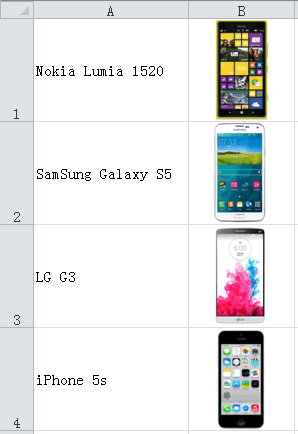
How to Extract Pictures From An Excel File


If you want to quickly extract pictures from an Excel file that embedded many pictures, you cannot be simply to do this. There's no build-in function to do this in Excel.

 Here are two simple ways to quickly extract pictures from an Excel file.
How to Quickly Extract Pictures From An Excel File


1.  Change the save as type to *.htm, *.html

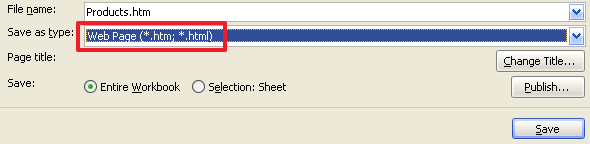
Open your Excel file, click File tab, choose Save As, in the Save As window, click the drop-down menu labeled Save as type:, scroll down and choose Web Page (*.htm;*.html), Click Save.
Save as Web Page File
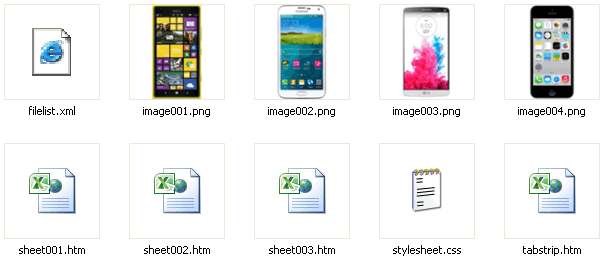
When a web page is saved in a computer two files are actually generated. One is the html file, and another is a folder that contains all the images and other component files that are a part of the web page. For example, an Excel file named Products.xls saved as a web page will generate Products.htm and a folder labeled Products_files. If Products.xlscontained images, these images will now be in the Products.xls_files folder. Now, open Products.xls_files folder, you will sell all the pictures.
All images in Web Page File


2. Change the Excel file extension (only available with .xlsx) as a RAR file 

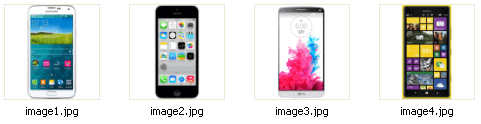
For example, change Products.xlsx to Products.rar, extract the Products.rar file, you will see 3 folders (_rels, docProps and xl) and 1 xml file ([Content_Types].xml), open xl folder, open media folder, you will sell all the images in the media folder.
All images in media folder

Monday, March 25, 2019

How To Extract Formulas From Excel At Once


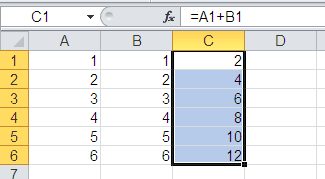
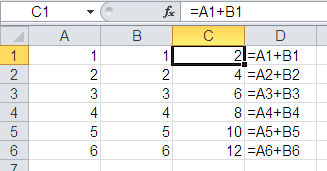
Sometimes you may need to convert formula to text string in Excel, such as =A1+B1, follow the below mentioned steps for extracting the formulas from Excel at once.

Example

For Example, we need to show the Column C with original formulas but not their calculated results in Column D, see the following screen shot.
Extract Formuls Question

Steps

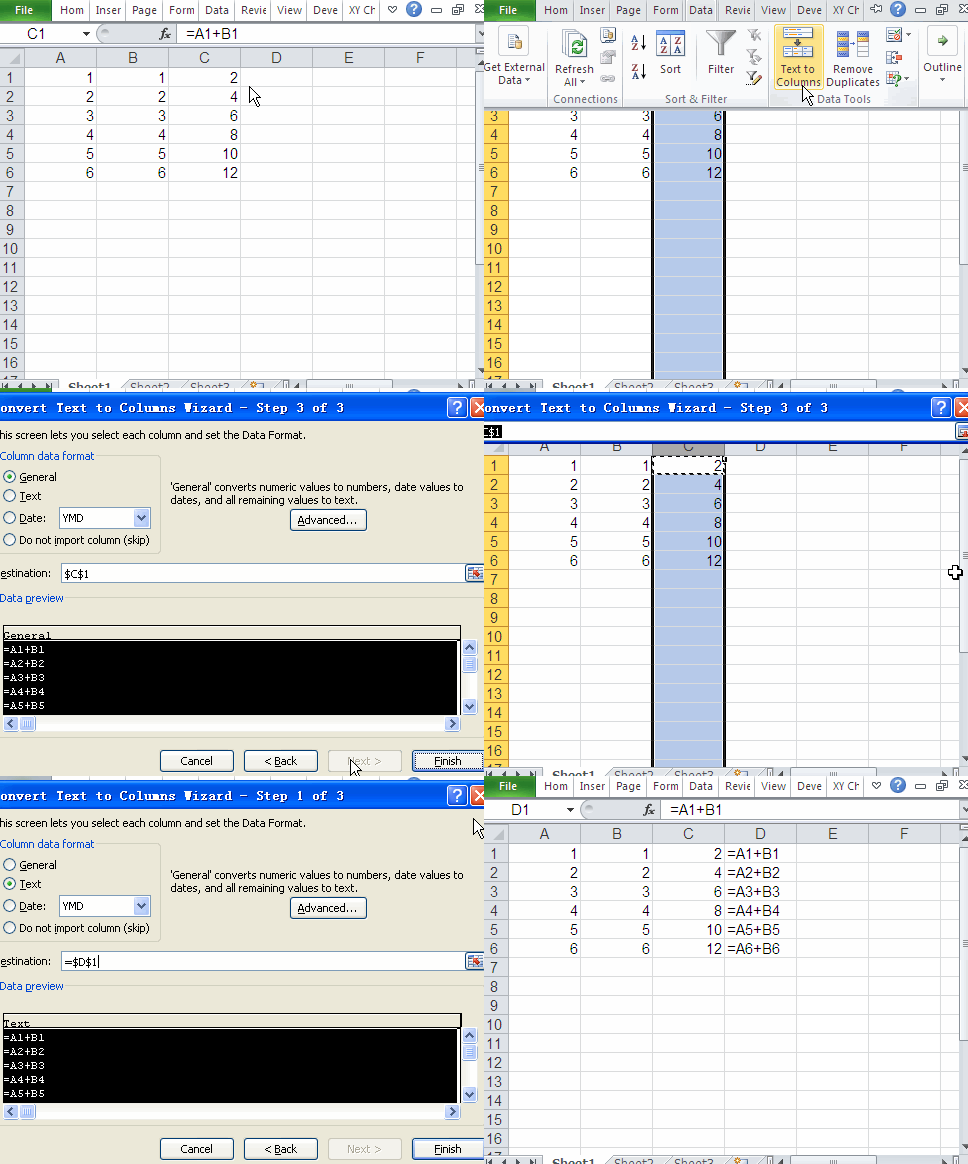
  1. select Column C.
  2. Under the Data menu tab, in the Data Tools group, click the Text to Columns button.
  3. In Convert Text to Columns Wizard window, do the following:
    1. In Convert Text to Columns Wizard - step 1 of 3 window, click Next.
    2. In Convert Text to Columns Wizard - step 2 of 3 window, click Next.
    3. In Convert Text to Columns Wizard - step 3 of 3 window, under Column data format, choose Text, in Destination box, enter a cell reference: D1, or click Collapse Button Collapse Button to temporarily hide the dialog box, select cell D1 on the worksheet, and then press Expand Button Expand Button.
    4. click Finish.

Final Results

Extract Formuls Results

Video

Extract Formuls From Excel

Monday, March 18, 2019

Quickly Copy Values Without Formulas in Excel

You can quickly copy values without formulas in Excel. 

The example may be easier to understand if you copy A1:C5 to a blank worksheet.


A B C
1 Data Formula Result
2 3 =A2-1
3 4 =A3-1
4 5 =A4-1
5 6 =A5-1


Step 1: Select B2
Step 2: Press and hold CTRL then Select B3:B5
Step 3: Press CTRL C
Step 4: Select a blank cell (eg. C2) and Press CTRL V to paste the values.


Excel VBA Editor Keyboard Shortcuts


The complete list of Excel VBA Editor (VBE) keyboard shortcuts are for U.S. keyboard layout and Windows Operation system. 
#ActionShortcut
1HelpF1
2Object BrowserF2
3FindF3
4Properies WindowF4
5RunF5
6Switch Split WindowsF6
7Goto Window Of ObjectF7
8StepF8
9BreakpointF9
10Activate Menu BarF10
11Toggle Insert ModeInsert
12DeleteDelete
13Beginning Of LineHome
14End Of LineEnd
15Page UpPgUp
16Page DownPgDn
17Left←
18Right→
19Up↑
20Down↓
21IndentTab
22New LineEnter
23Delete Prev CharBackSpace
24Procedure DefinitionShift F2
25Find PrevShift F3
26Find NextShift F4
27Procedure StepShift F8
28Quick WatchShift F9
29Show Right Click MenuShift F10
30PasteShift Insert
31Select To Start Of LineShift Home
32Select To End Of LineShift End
33Select To Top Of ModuleShift PgUp
34Select To End Of ModuleShift PgDn
35Extend Selection Left 1 CharShift ←
36Extend Selection Right 1 CharShift →
37Extend Selection UpShift ↑
38Extend Selection DownShift ↓
39Un-indentShift Tab
40Focus To Object BoxCtrl F2
41Close WindowCtrl F4
42Run To CursorCtrl F8
43Activate Menu BarCtrl F10
44Select All TextCtrl B
45CopyCtrl C
46Export ModuleCtrl E
47FindCtrl F
48Immediate WindowCtrl G
49ReplaceCtrl H
50Turn On Quick InfoCtrl I
51List MembersCtrl J
52Show Call StackCtrl L
53Import FileCtrl M
54New LineCtrl N
55PrintCtrl P
56Project WindowCtrl R
57SaveCtrl S
58Show Available ComponentsCtrl T
59PasteCtrl V
60CutCtrl X
61Cut Entire LineCtrl Y
62UndoCtrl Z
63CopyCtrl Insert
64Delete To End Of WordCtrl Delete
65Top Of ModuleCtrl Home
66End Of ModuleCtrl End
67Top Of Current ProcedureCtrl Page Up
68End Of Current ProcedureCtrl Page Down
69Left WordCtrl Left Arrow
70Right WordCtrl Right Arrow
71Previous ProcedureCtrl Up Arrow
72Next ProcedureCtrl Down Arrow
73Turn On Complete WordCtrl Space Bar
74Cycle WindowsCtrl Tab
75Delete To Start Of WordCtrl BackSpace
76Close VBEAlt F4
77Run Error HandlerAlt F5
78Switch Between Last 2 WindowsAlt F6
79Step Error HandlerAlt F7
80Return To ApplicationAlt F11
81Add-Ins MenuAlt A
82Debug MenuAlt D
83Edit MenuAlt E
84File MenuAlt F
85Help MenuAlt H
86Insert MenuAlt J
87Format MenuAlt O
88Close & ReturnAlt Q
89Run MenuAlt R
90Tools MenuAlt T
91View MenuAlt V
92Window MenuAlt W
93System MenuAlt Space Bar
94Cycle ApplicationsAlt Tab
95UndoAlt BackSpace
96Previous PositionCtrl Shift F2
97Clear All BreakpointsCtrl Shift F9
98Turn On Param InfoCtrl Shift I
99Turn On List PropertiesCtrl Shift J